# Reset a password in Admin Portal
Offline sample guide showing capture, annotations, rich text, and exports.
## Contents
- [1. Open Admin Portal users](#step-1)
- [2. Enable the reset policy](#step-2)
- [2.1. Confirm permission prompt](#step-2-1)
- [3. Review the confirmation](#step-3)
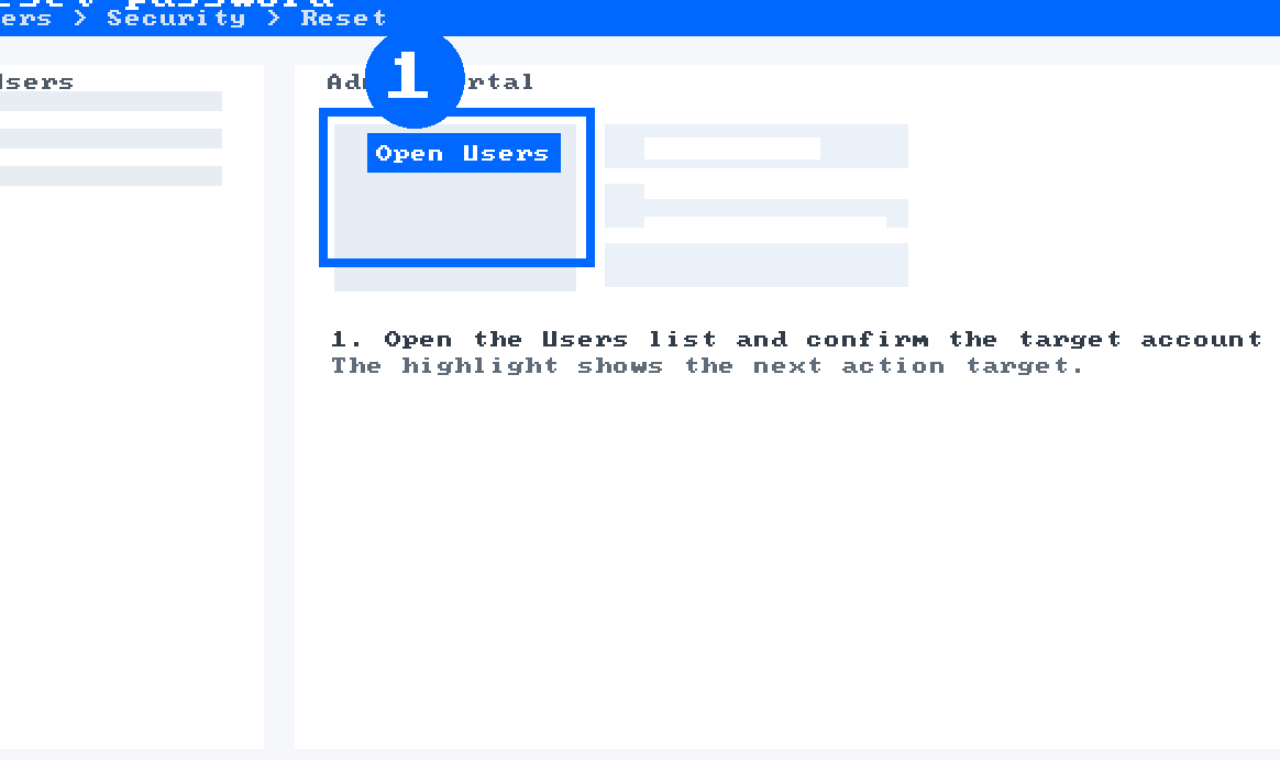
## 1. Open Admin Portal users
Open the users list and select the target account.
> **Note: Tip**
> Use the search box to avoid scrolling.
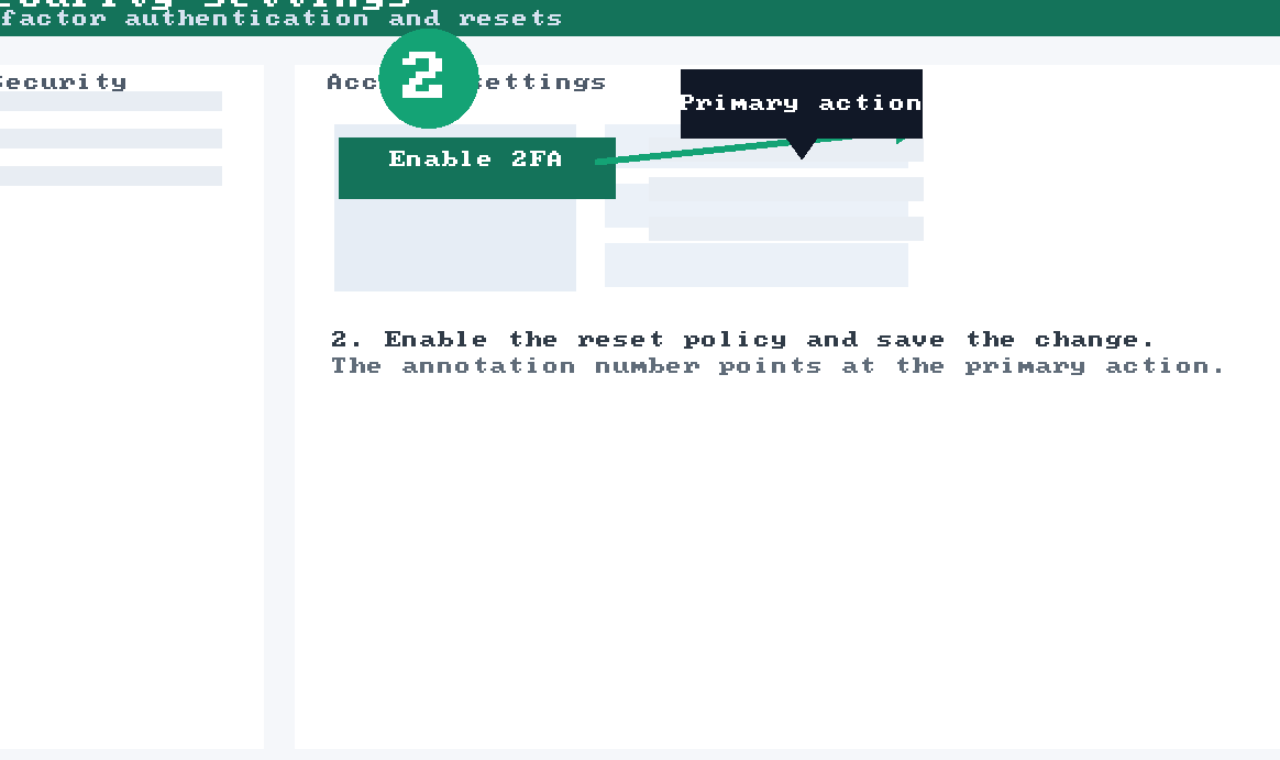
## 2. Enable the reset policy
Make sure the policy is active before continuing.
```bash
stepforge --capture --window --delay 300
```
### 2.1. Confirm permission prompt
Only administrators can complete this step.
> **Warning: Access**
> Admin rights required.
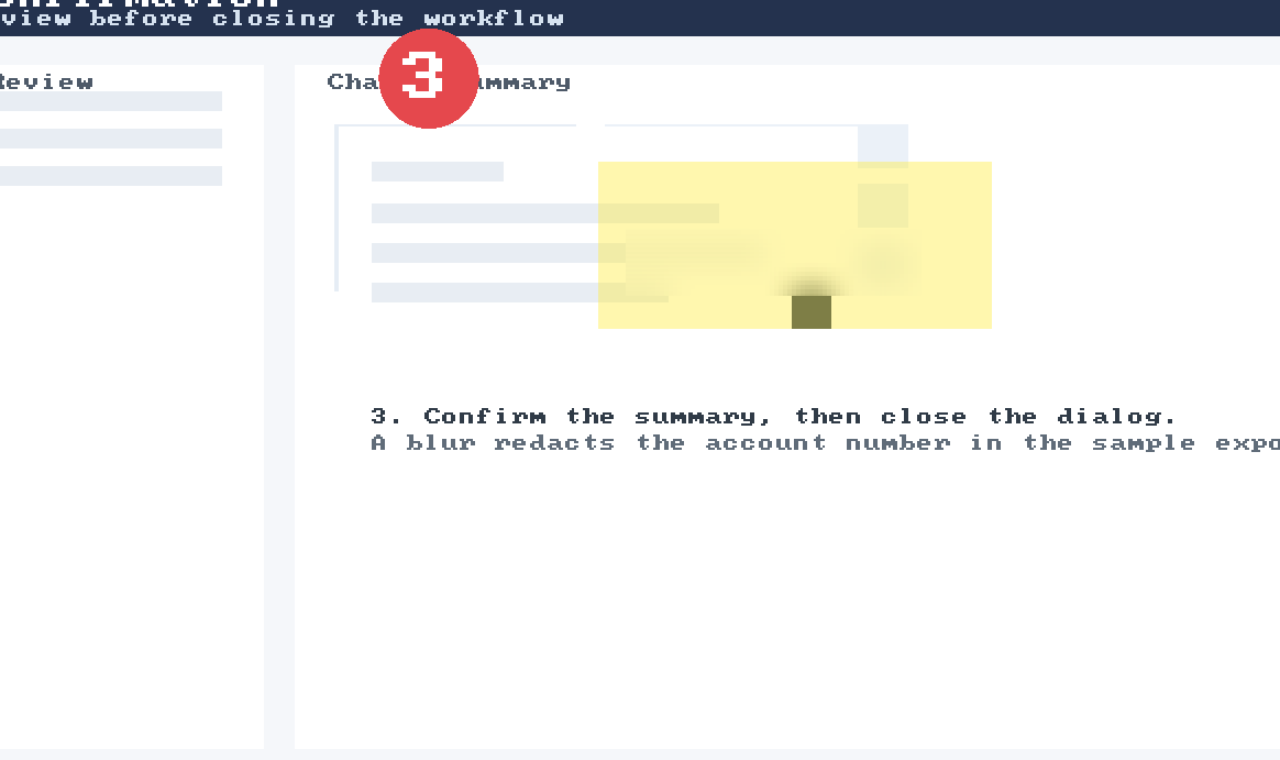
## 3. Review the confirmation
Confirm the summary and close the modal.
| Field | Value |
| --- | --- |
| Title | Admin Portal |
| Owner | Support |